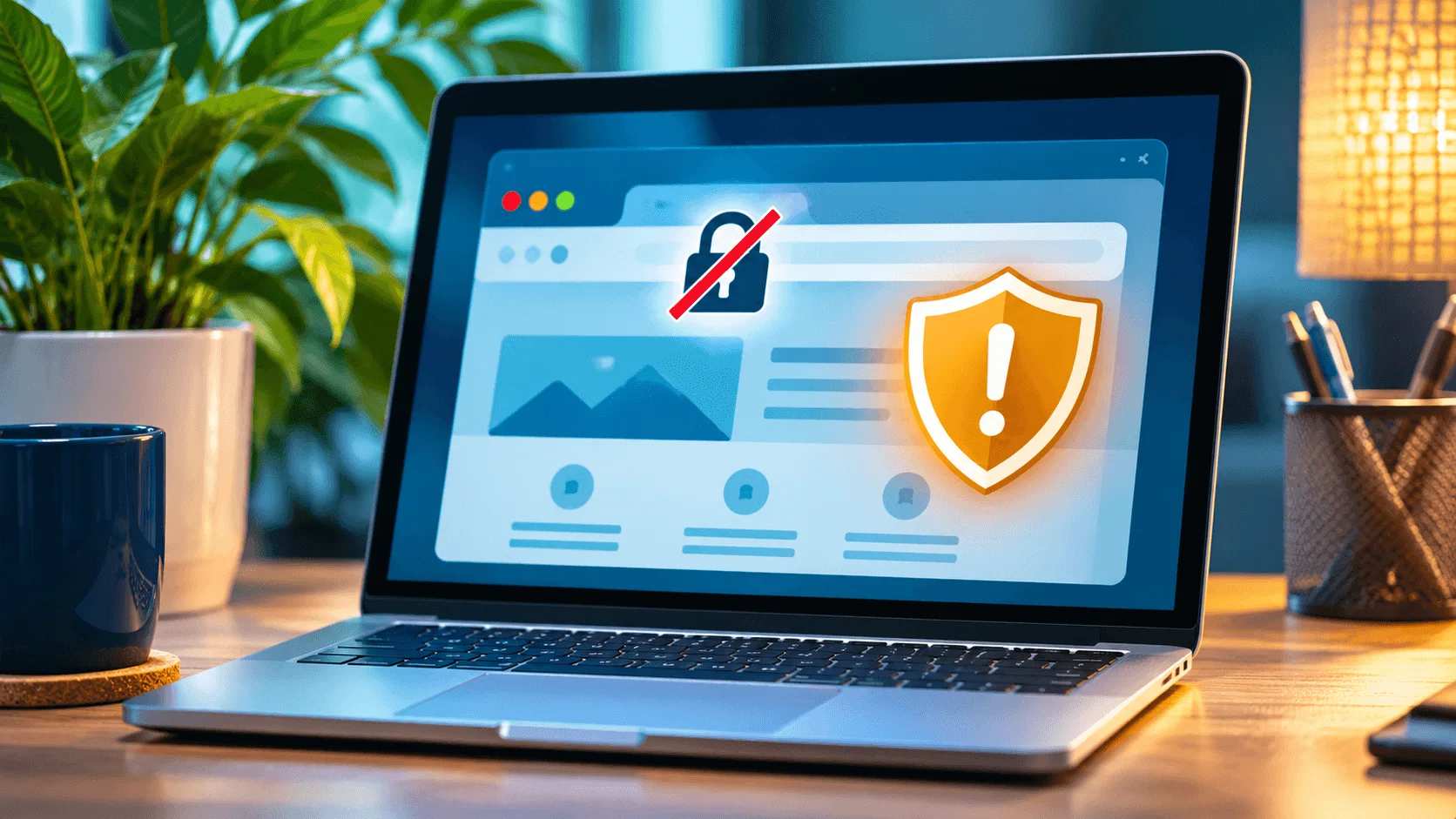
A customer clicks your website and sees “Your connection is not private” instead of your services. That warning can make a legitimate business website look unsafe. One possible cause is an expired SSL/TLS certificate, which helps a browser establish an encrypted connection to your site.
For Houston business owners, the priority is to identify the warning, restore a valid secure connection, and verify that customers can reach the site normally.
What does “SSL certificate expired” mean?
Website certificates have validity dates. If a certificate expires without being renewed or replaced, browsers may reject the secure connection and show a warning. However, similar warnings can also result from a mismatched domain name, incomplete certificate installation, or other configuration issues.
Do not tell visitors to bypass a browser security warning. Find and fix the cause instead.
How to check whether your SSL certificate has expired
Start with these checks:
- Open your website using
https://and note the exact browser warning. - Check the certificate details in the browser or your hosting provider's SSL dashboard, including its expiration date and covered domain names.
- Test both your main domain and the
wwwversion if you use both. - Confirm that your domain is pointing to the intended hosting service.
- Ask your hosting provider whether automatic certificate renewal is enabled and whether a renewal attempt failed.
If you recently changed hosting, DNS, or a domain setting, mention that when requesting support. Those changes may affect certificate issuance or validation.
How to fix an expired SSL certificate
1. Renew or replace the certificate
Many hosting platforms provide managed certificates and automatic renewal. Follow your provider's renewal process. If you manage certificates yourself, use the certificate authority's instructions and ensure the new certificate is installed on the correct server or service.
2. Verify domain validation and DNS settings
A certificate provider may need to confirm control of your domain. Incorrect DNS records or a domain that points to the wrong host can interfere with issuance. Avoid making random DNS changes; they can also interrupt your website or email.
3. Confirm the certificate covers the right names
A certificate for example.com does not automatically cover every possible subdomain. Make sure the names customers use are included and configured correctly.
4. Check redirects and mixed content
After a valid certificate is installed, verify that HTTP pages redirect appropriately to HTTPS. Some pages may still load images or scripts over insecure HTTP, which can cause additional browser warnings.
5. Test the website after renewal
Check the homepage, contact form, service pages, and mobile experience. Confirm the browser no longer reports a certificate problem and that the site is reachable from outside your own network.
Why does the warning sometimes remain after renewal?
The renewed certificate may be installed on the wrong server, a CDN may still present an older certificate, or one hostname may be missing. DNS changes can also take time to propagate. The exact browser error and certificate details are more useful than guessing.
How to reduce future SSL certificate problems
Use automatic renewal where available, keep domain and hosting contact information current, and monitor certificate expiration. If you manage multiple hosting or CDN services, document which system is responsible for the public certificate.
Get help with an SSL warning in Houston
Local Growth Advantage investigates SSL warnings, domain and DNS issues, and other website problems for Houston-area businesses. We start with a diagnosis and explain whether the next step belongs with your hosting provider, domain provider, or website configuration.
Explore Website Repair Services or request a website repair check.
Understand the browser warning before changing settings
Not every HTTPS warning means the certificate has expired. The browser may report an expired certificate, a certificate issued for the wrong hostname, an untrusted issuer, or a problem establishing a secure connection. These have different fixes. Record the exact message and the affected URL before you contact support.
For example, example.com might work while www.example.com shows a warning. That points toward a hostname or configuration difference rather than a problem with every page on the site. Similarly, a site behind a content delivery network (CDN) may use one certificate between the visitor and the CDN and another between the CDN and the origin server. Renewing the wrong certificate may leave the public warning unchanged.
A warning that appears only on one device may also deserve a second test. An incorrect device clock, outdated software, or a local network issue can affect certificate validation. Do not assume the website is healthy solely because it works on your own phone; test from another browser or network and compare results.
Who is responsible for renewing the certificate?
The answer depends on how the site is hosted:
- Managed website platform: The platform often provisions and renews certificates automatically, but domain configuration still matters.
- Shared or managed WordPress hosting: The host may provide an SSL tool or automated renewal, with support available when validation fails.
- Self-managed server: The server administrator may be responsible for certificate issuance, renewal scheduling, installation, and web-server configuration.
- CDN or reverse proxy: You may need to check the public-facing certificate and the separate connection to your origin server.
If you are unsure, start with the provider that serves the public website. Ask which service currently terminates HTTPS and whether the public certificate is under its management. Avoid buying an unnecessary certificate before establishing whether a free or included managed certificate already exists.
A practical troubleshooting checklist for an expired SSL certificate
- Write down the exact browser error. Include whether it appears on the root domain,
www, or a particular subdomain. - Check the certificate's dates and names. Confirm the certificate currently presented to visitors—not just the one listed in a dashboard—is valid for the hostname.
- Check the hosting and CDN dashboards. Look for failed renewal messages, pending domain validation, or an inactive custom domain.
- Review recent changes. Domain transfers, DNS edits, proxy changes, and hosting migrations can interrupt certificate issuance.
- Renew or reissue through the responsible provider. Follow its documented process rather than copying certificates between unrelated services.
- Verify the result externally. Test both hostname variants and the important customer-facing pages after the provider confirms installation.
Do not paste private keys into emails, chat messages, or public troubleshooting forms. A certificate's public details are useful for diagnosis; the private key is sensitive and should remain protected.
What an SSL error can mean for customers
If visitors see a browser interstitial, some will leave before they reach your services, booking page, or contact form. A certificate error can also prevent third-party integrations or automated checks from connecting reliably. That is why resolving the actual HTTPS problem matters more than simply hiding a warning banner.
After repair, test the customer journey: open the homepage from a new browser session, navigate to a service page, and submit a test inquiry. If your site takes payments, use the payment provider's recommended test process rather than making an unnecessary real charge.
SSL renewal versus other website-security work
Renewing a certificate helps restore a trusted encrypted connection. It does not, by itself, update WordPress plugins, remove malware, repair a broken form, or guarantee that a website is secure against every attack. Those are separate maintenance and security tasks. If the site also displays unfamiliar redirects or content, investigate those symptoms independently instead of assuming certificate renewal will solve them.
When to ask for website repair help
Request assistance if you cannot identify the provider responsible for HTTPS, the renewal repeatedly fails, the certificate covers the wrong domain, or the warning remains after the provider reports success. Provide the exact URL, warning screenshot, and any recent hosting or DNS changes. You should not need to disclose account passwords in an initial inquiry.
Frequently asked questions
Is an expired SSL certificate the same as a hacked website?
No. An expired certificate does not, by itself, mean a website has been hacked. It does mean the browser cannot establish the expected trusted connection.
Does an SSL certificate renewal fix every “not secure” warning?
No. Domain-name mismatches, certificate chains, insecure page resources, and other issues can produce warnings. The specific error matters.
What if my WordPress site stopped working after a server change?
There may also be a PHP or plugin compatibility issue. See our guide to WordPress PHP update problems.